Quiz 2. Variables, Properties, & Event parameters
1.
What is a variable?
A variable is a named memory cell where information can be stored.
2.
In the PaintPot app we needed a variable to keep track of the circle size, however, we did not use one for keeping track of the line size. Why?
We did not make a variable to represent the line size because Canvas has a property called LineWidth. We used this property to keep track of the size of the line. We had to make a seperate variable for circle size because Canvase does not contain a property for representing the circle Size.
3.
In App Inventor, how are a variable and a property similar? How are they different?
Component properties and variables are both "named memory cells". They are different in that a property is part of a component, whereas a variable is a "free-agent" memory cell not associated with a particular component. So properties are named in the form < componentName >.< propertyName >, e.g., Canvas.Width, while variables are just a single name, e.g., dotsize.
4.
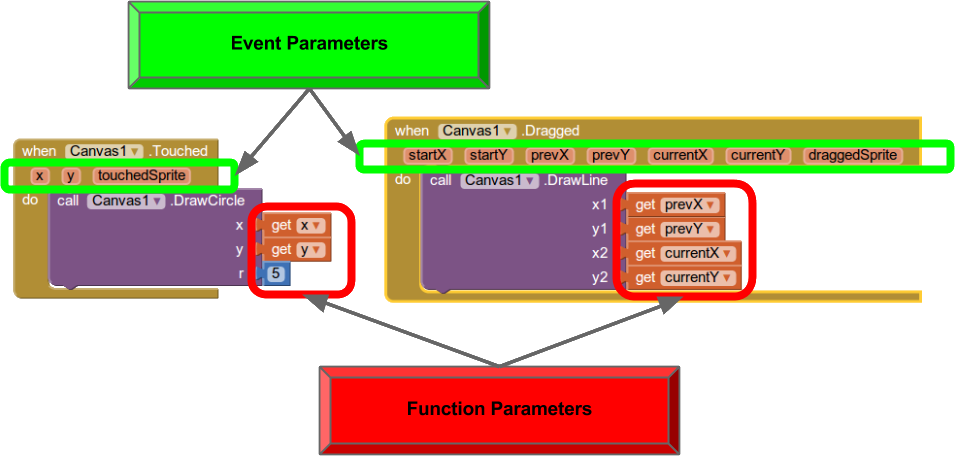
Circle and label the event parameters and function parameters in the following blocks: 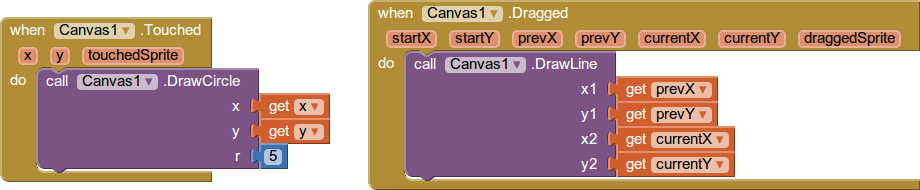
5.
Assume we make a small modification to Canvas1's drawLine function. We decide to change x1 to be set to startX and y1 to be set to starty. How would this change the behavior of the app?
All of the lines drawn during a dragged event will now start at the same initial clicked location and end wherever the user is currently clicking. In other words, you will have a bunch of lines coming from one point and ending in different places.
6.
Consider a drawing app like PaintPot which allows the user to draw circles and lines. In this app, there are two textboxes, dotSizeText and lineWidthText, and two buttons,
dotSizeButton and lineWidthButton. The user can control the size of the drawn circles and lines by modifying the textboxes and clicking on the submit buttons. Note that the sizes
of the circles and lines drawn should not change until the user clicks on the respective submit buttons.
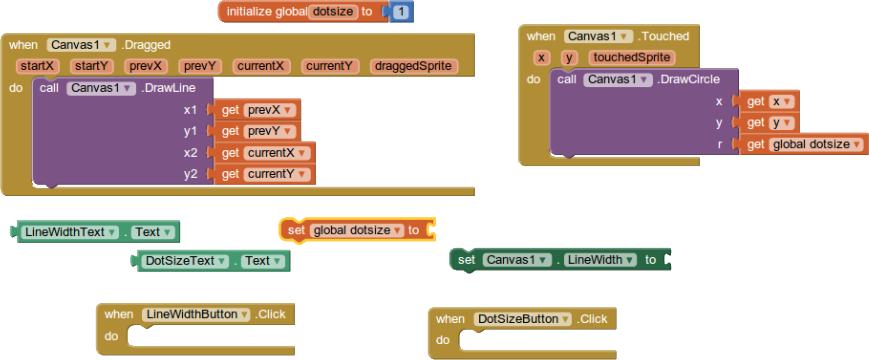
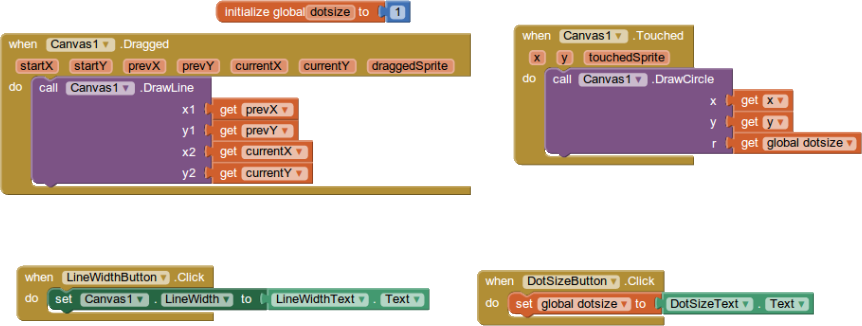
Define the behavior for this app by drawing the completed
DotSizeButton.Click, and LineWidthButton.Click event handlers. The needed blocks are shown below.